
Email alerts and Google Sheets
Email alerts tell you when someone submits your form. Google Sheets sync adds every response to a spreadsheet as it comes in. Both are part of the Pro plan, and you set them up per form on its dashboard.
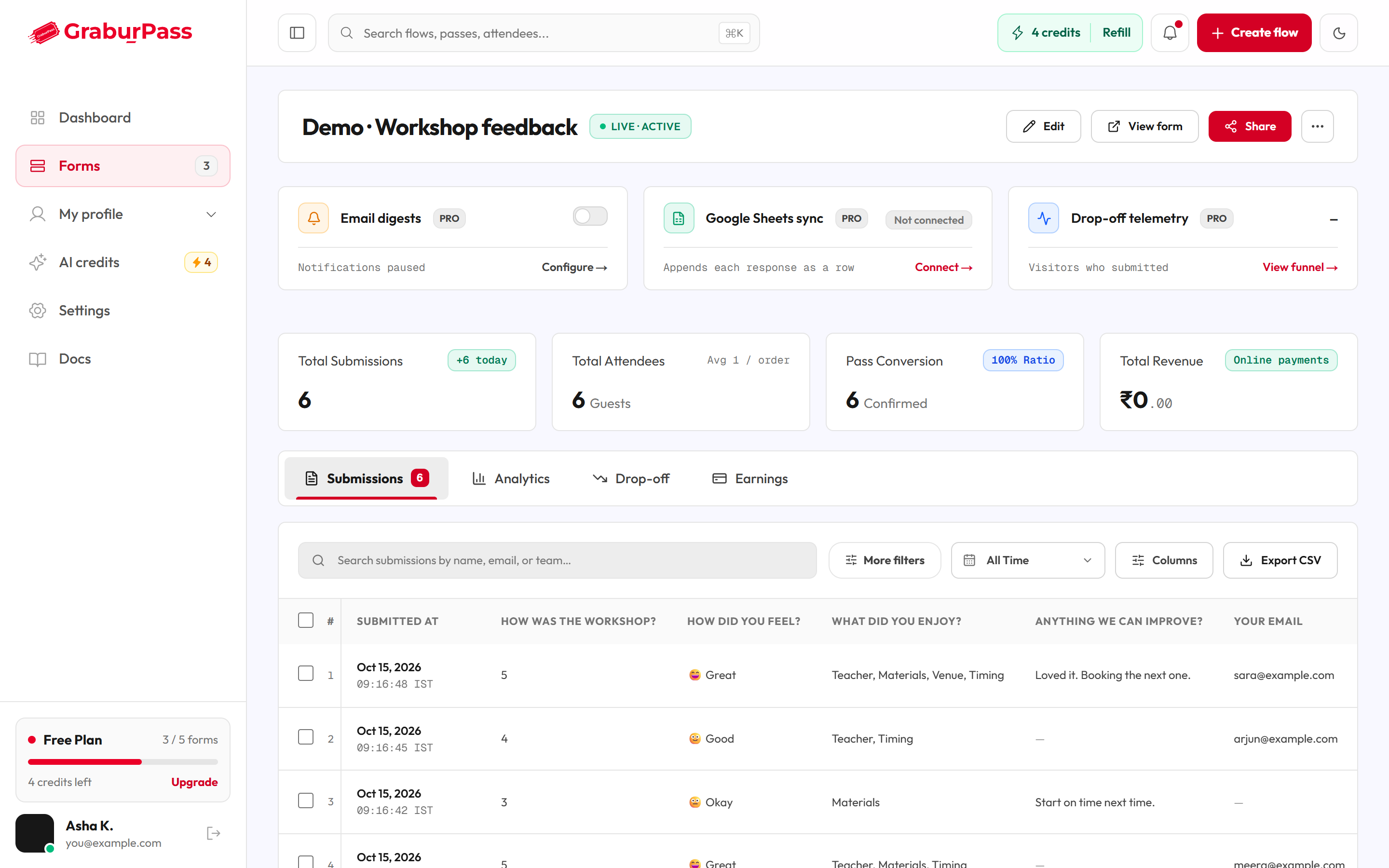
Turn on email alerts
- Open the form's dashboard from the Forms page.
- Find the card marked PRO called Email digests.
- Turn the switch on. The caption changes to Notifications on.
- To stop, turn the switch off. The caption reads Notifications paused.
You get at most one email an hour. It has a count of new responses and a link to your dashboard. Answers are never put in the email.
If you are on Free or Builder, turning the switch on opens an upgrade box instead. See Plans and AI credits.
Connect Google Sheets
- On the form's dashboard, find the Google Sheets sync card. The badge reads Not connected.
- Click Connect →.
- Sign in to Google and allow access when asked.
- You return to the dashboard with the message "Connected. New responses will now append to your sheet."
- To see your spreadsheet, click Open sheet ↗.
Once connected, each new response is added to the sheet as a new row. The badge reads Connected.
Messages
| Message | What it means | What to do |
|---|---|---|
| Email alerts are part of the Pro plan. | Your plan doesn't include alerts. | Upgrade to Pro. |
| Couldn't save that. Please try again. | The switch didn't save. | Try again. |
| Email sending isn't set up on this site yet, so alerts can't go out. | Email isn't available right now. | Try again later. |
| Google Sheets sync is a Pro plan feature. | Your plan doesn't include the sync. | Upgrade to Pro. |
| Google Sheets is not configured on this server. | The sync isn't available right now. | Try again later. |
| Form not found. | The form was deleted or isn't yours. | Go back to the Forms page. |