
Dashboard
When you sign in, you land on your Dashboard. This page covers the menus that stay on every screen, then the Dashboard page itself, where you see all your forms and their latest activity at a glance.
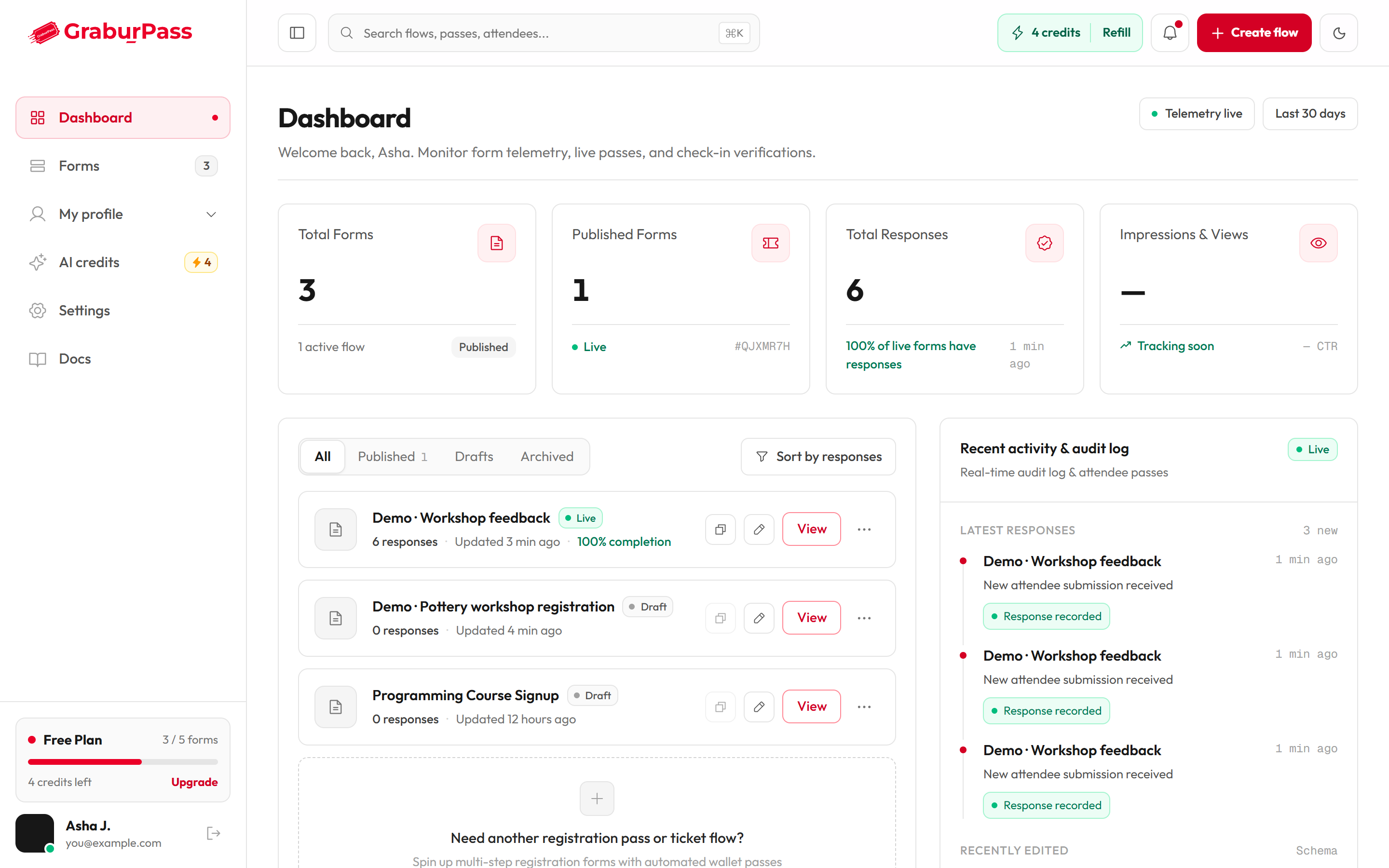
The app layout
Every signed-in screen has a sidebar on the left and a top bar across the top.
Sidebar
| Item | What it does |
|---|---|
| Dashboard | Your overview page. |
| Forms | All your forms. A small number shows how many you have. |
| My profile | Opens a group with Profile, Security, Payouts, Data & privacy and Legal. |
| AI credits | Your credit balance and purchases. If you don't see this, it isn't available on your account yet. |
| Settings | The devices you are signed in on. |
| Docs | Opens this documentation. |
At the bottom you see your plan and an Upgrade link. Your name, email and a Log out button are below that.
Top bar
| Control | What it does |
|---|---|
| Search box | Type to find a form by its title. Press Ctrl+K (Cmd+K on a Mac) to jump to it. On the Forms page it filters as you type. On any other page, press Enter to see matching forms. |
| Create flow | Opens a menu with one choice, Form. Pick it to start a new form. |
| Theme toggle | Switches between light and dark. Your choice is remembered in this browser. |
| Collapse sidebar / Expand sidebar | Shrinks the sidebar to icons, or opens it again. |
| Open menu | On a phone or small window the sidebar is hidden. Click Open menu to slide it in. Click Close menu or press Esc to close it. |
| Credits pill | Shows your AI credits and a Refill button. If you don't see this, it isn't available on your account yet. |
The Dashboard page
If you have no forms yet, the page says Create your first flow. Click Create on the Form card to start.
Stat tiles
| Tile | What it shows |
|---|---|
| Total Forms | How many forms you have, and how many are published. |
| Published Forms | How many forms are published, and the code of the one you changed most recently. |
| Total Responses | Total responses across all forms, how long ago the latest one came in, and what share of your published forms have at least one response. |
Forms panel
The panel lists your forms. Use the tabs All, Published, Drafts and Archived to filter. Turn on Sort by responses to put the busiest forms first.
Each row shows a status (Live, Draft or Closed), the number of responses, and when you last edited it. Buttons on the row:
- Copy link: copies the form's link. It is off for drafts until you publish.
- Edit: opens the editor.
- View: opens the live form.
- The ⋯ menu: more actions for the form.
Archived means closed forms. A form is closed from its response page. See Forms list.
Recent activity
- Latest responses: up to three of your newest responses.
- Recently edited: the three forms you changed last.