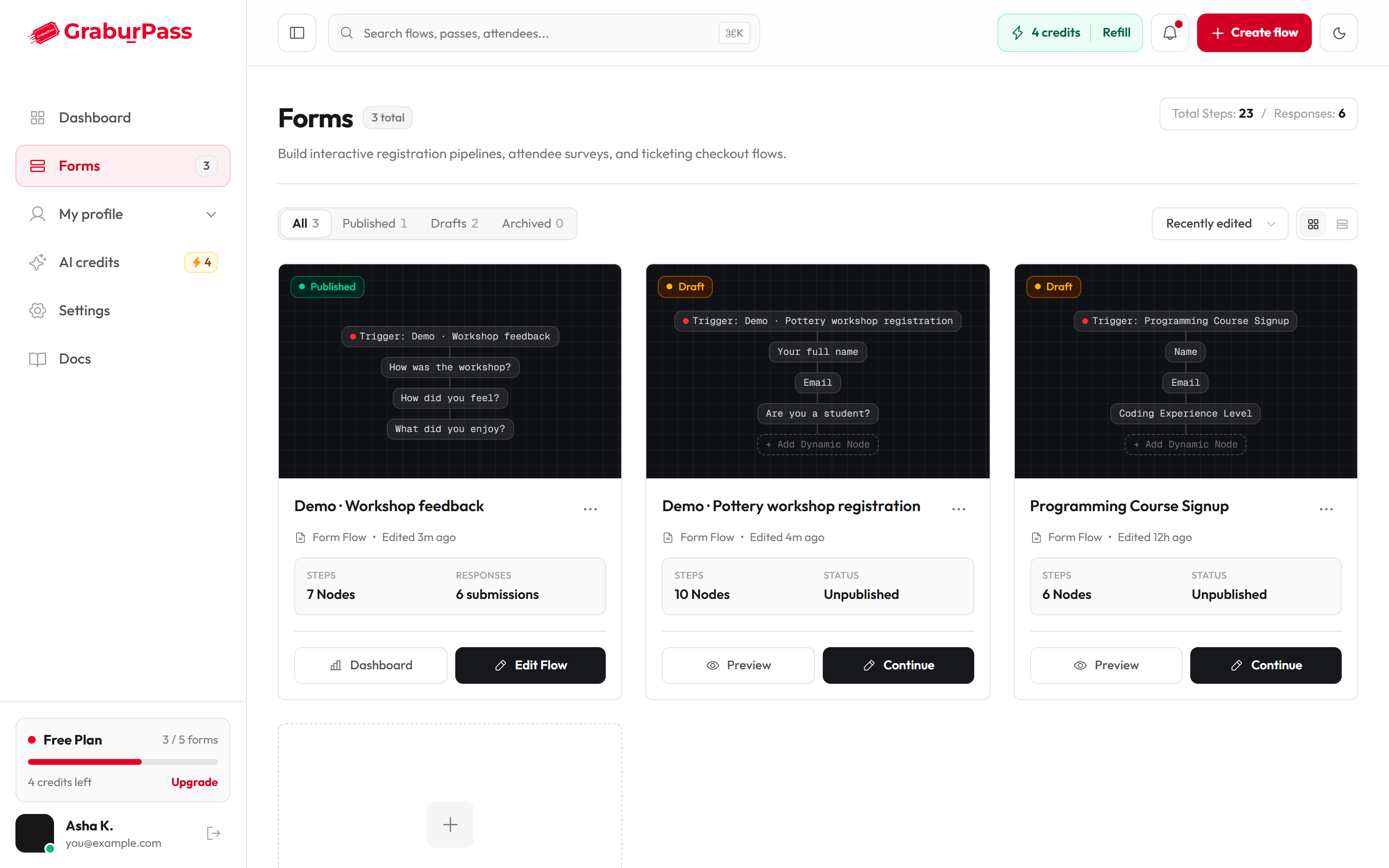
The Forms page shows every form you have made. Use it to find a form, open its responses, share it or start a new one. There is no limit on how many forms you can have.
Tabs, sort and view buttons sit above the cards. Each card shows its status, steps and responses.
Find a form
Click Forms in the sidebar.
Pick a tab: All, Published, Drafts or Archived. Each tab shows a count.
Type in the search box at the top to filter by title. Click Clear search to see everything again.
Open the sort menu to change the order.
Click Grid view or List view to change the layout.
Open a form
Click a card. A draft opens in the editor. A published or closed form opens its response page.
On a draft card: Preview to test it, Continue to keep building.
On a published or closed card: Dashboard for its responses, Edit Flow to open the editor.
Start a new form
On the dashed Create new registration flow tile, click Start blank to build by hand. You can also click Create flow in the top bar and choose Form.
Or click Generate with AI to describe your form and let GrabUrPass AI build it. If you don't see this button, it isn't available on your account yet. See GrabUrPass AI.
Share or delete a form
Click ⋯ on a card.
Choose View form, Share, Dashboard or Delete.
For Delete, click Delete form to confirm, or Keep form to cancel.
What you'll see
Tabs and sort
Setting
What it does
Options / default
Tabs
Filter forms by status. Archived shows closed forms.
All (default), Published, Drafts, Archived
Sort
Changes the order of the forms.
Recently edited (default), Name (A–Z), Most responses, Most steps
View
Cards or a compact list.
Grid view, List view
Search
Matches the form title.
Empty by default
Inside a card
Part
What it shows
Badge
Published, Draft or Closed.
Title and edit time
The form name and when you last edited it.
Steps
How many blocks the form has.
Responses
How many responses it has. For a limited form it shows used and total. A draft shows Unpublished.
The ⋯ menu
Item
What it does
View form
Opens the live form in a new tab. Published or closed forms only.
Share
Opens a panel with the link, WhatsApp, email, a QR code you can download, and embed code (to put the form on your own website). Published or closed forms only.
Dashboard
Opens the form's responses.
Delete
Deletes the form and its responses, after you confirm.